Smart home integration has revolutionized how we interact with our living spaces, turning ordinary houses into responsive, automated environments. From voice-controlled assistants like Google Home to powerful platforms like Home Assistant, the possibilities are endless. Whether you’re looking to enhance your weather forecasts with Pirate Weather, connect a Bluetooth speaker for immersive audio, or integrate security devices like Eufy and Wyze cameras, this guide covers it all. By mastering these tools, you can create a seamless, efficient home that adapts to your needs, saving time and boosting convenience. Let’s dive into the essentials of smart home setup and optimization.
To add Pirate Weather to Home Assistant, install the integration via HACS or manually, configure your API key, and set up sensors for real-time forecasts. This enhances automation with accurate weather data.
Getting Started with Home Assistant and Google Home
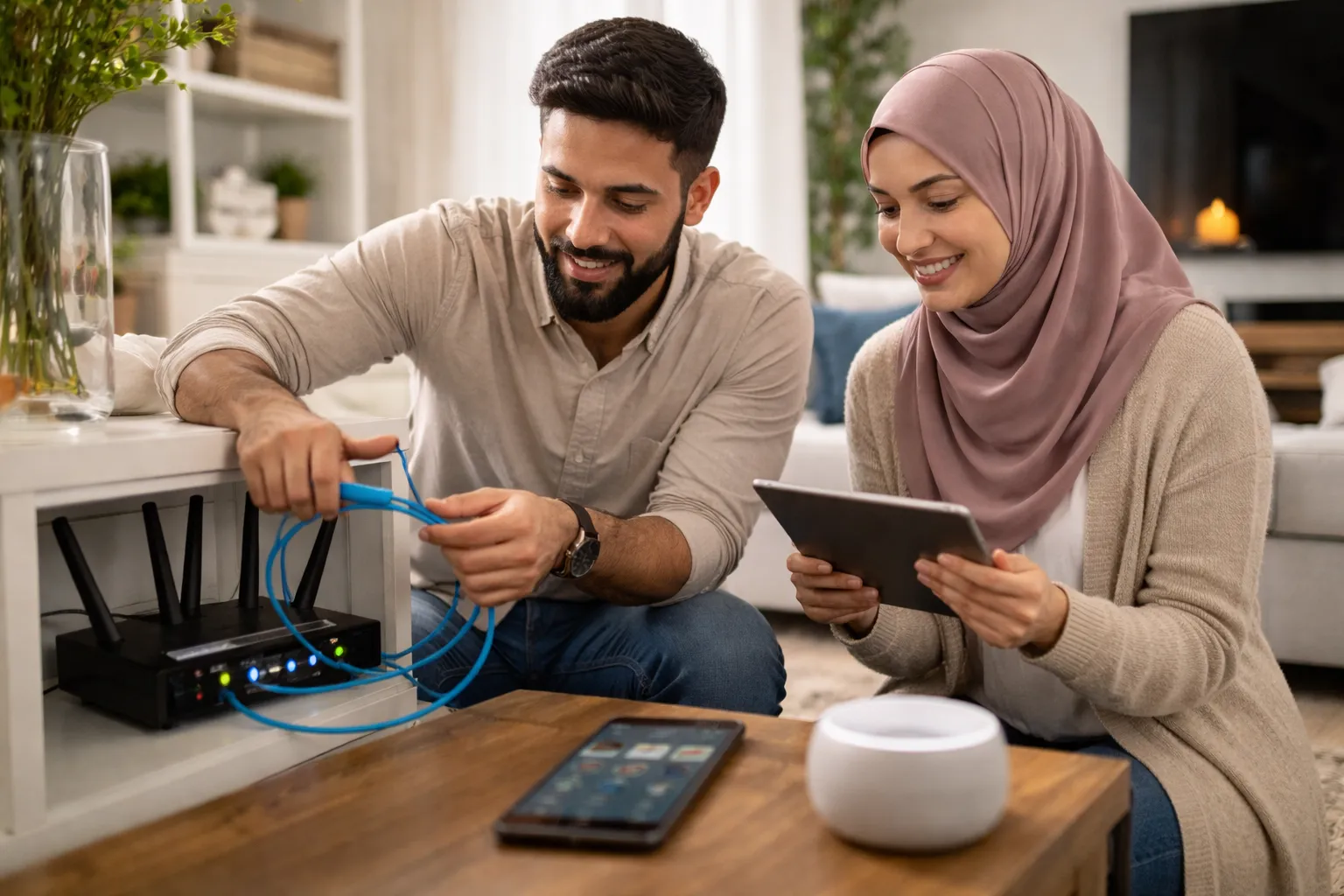
Home Assistant is an open-source platform that centralizes control of various smart devices, offering extensive customization. Google Home, on the other hand, provides user-friendly voice commands through assistants like Google Assistant. Integrating these systems can streamline your smart home experience. For example, you can use Google Home to trigger scenes set up in Home Assistant, or vice versa. To begin, ensure both platforms are updated and connected to your network. A solid smart home networking setup is crucial for reliable performance, as it prevents connectivity issues and delays.
- Install Home Assistant on a Raspberry Pi or similar device for local control.
- Set up Google Home via the app and link it to your Wi-Fi network.
- Use the Google Assistant integration in Home Assistant to enable voice commands.
- Test basic automations, like turning lights on/off, to verify connectivity.
How to Add Pirate Weather to Home Assistant
Pirate Weather is a popular alternative to traditional weather services, offering detailed forecasts that can enhance your smart home automations. Adding it to Home Assistant involves a few straightforward steps. First, you’ll need an API key from the Pirate Weather website. Then, install the integration through HACS (Home Assistant Community Store) for ease, or manually via YAML configuration. Once added, configure sensors for temperature, precipitation, and other metrics to trigger actions like adjusting thermostats or closing blinds. This integration is especially useful for seasonal home maintenance, helping you prepare for weather changes proactively.
- Obtain an API key from the Pirate Weather website by signing up for a free or paid plan.
- In Home Assistant, go to Settings > Integrations and click “Add Integration.”
- Search for “Pirate Weather” and enter your API key when prompted.
- Configure sensors by editing the YAML file to include latitude, longitude, and desired metrics.
- Restart Home Assistant to apply changes and test the weather data in your dashboard.
Integrating Bluetooth Speakers with Google Home
Adding a Bluetooth speaker to Google Home expands your audio capabilities, allowing for multi-room sound or enhanced voice assistant responses. This process is simple and can be done through the Google Home app. Start by putting your Bluetooth speaker in pairing mode, then open the app and navigate to the device settings. From there, you can link the speaker and assign it to rooms for organized control. For a more comprehensive setup, consider integrating it with other smart devices, like those managed through home gym pulley systems for workout audio, creating a versatile entertainment environment.
- Ensure your Bluetooth speaker is charged and within range of your Google Home device.
- Open the Google Home app and tap on the “+” icon to add a new device.
- Select “Set up device” and choose “Have something already set up?” to find your speaker.
- Follow the on-screen instructions to complete pairing and test audio playback.
Eufy and Wyze Camera Integration with Home Assistant
Eufy and Wyze are popular brands for affordable, reliable security cameras, and integrating them with Home Assistant adds advanced automation features. For Eufy devices, use the Eufy Security integration via HACS to access live feeds and motion sensors. Wyze cameras can be integrated using the Wyze HACS integration or through RTSP streams for more control. These setups allow you to create automations, such as turning on lights when motion is detected, enhancing your home security upgrades. Always ensure firmware is updated for compatibility and security.
| Feature | Eufy Integration | Wyze Integration |
|---|---|---|
| Installation Method | HACS integration | HACS or RTSP |
| Key Benefits | Local storage, no fees | Affordable, cloud options |
| Automation Examples | Motion-triggered alerts | Light controls based on detection |
| Compatibility | Works with most Eufy models | Supports Wyze Cam v2 and newer |
Optimizing Your Smart Home Setup
To get the most out of your smart home, focus on optimization and troubleshooting. Regularly update software on all devices to ensure security and performance. Use automations to reduce manual tasks, such as scheduling lights or adjusting thermostats based on weather data from Pirate Weather. If you encounter issues, check network connectivity and device compatibility. For more advanced setups, explore integrating with other systems, like home electrical upgrades to support additional devices. Remember, a well-planned smart home not only adds convenience but can also increase energy efficiency and safety.
- Update all device firmware and software regularly to patch security vulnerabilities.
- Create automations in Home Assistant using visual editors or YAML for complex scenarios.
- Monitor network performance with tools to identify and resolve connectivity drops.
- Back up your Home Assistant configuration to prevent data loss during updates.
FAQs About Smart Home Integration
How do I troubleshoot connectivity issues with Google Home?
Restart your router and Google Home device, ensure Wi-Fi signals are strong, and check for interference from other electronics. Updating the Google Home app can also resolve glitches.
Can I use Pirate Weather for free in Home Assistant?
Yes, Pirate Weather offers a free tier with limited API calls, suitable for personal use. For heavy automation, consider upgrading to a paid plan for more data.
What are the benefits of integrating Wyze cameras with Home Assistant?
Integration allows for advanced automations, like triggering lights or alarms based on motion, and provides local control without relying solely on cloud services.
How do I add multiple Bluetooth speakers to Google Home?
Pair each speaker individually in the Google Home app, then group them into speaker groups for synchronized audio playback across rooms.
Is Eufy compatible with all Home Assistant versions?
Most Eufy devices work with recent Home Assistant versions via the HACS integration, but check the official documentation for specific model compatibility.
Can I automate weather-based actions with Pirate Weather?
Yes, set up sensors in Home Assistant to trigger actions, like closing windows if rain is forecasted, enhancing your home foundation protection against water damage.
What security measures should I take for smart home devices?
Use strong passwords, enable two-factor authentication, and keep software updated. Isolate IoT devices on a separate network if possible to reduce risks.