Smart home networking transforms your living space into an interconnected ecosystem of devices that communicate seamlessly to enhance convenience, security, and efficiency. From controlling lights with a voice command to monitoring security cameras remotely, a well-designed network is the backbone of any modern smart home. However, setting up and maintaining this network can be daunting, especially when dealing with integration issues like OpenGarage with Home Assistant, Amcrest network errors, or MyQ connectivity problems. This guide provides a comprehensive overview of smart home networking, offering practical tips for setup and troubleshooting to ensure your devices work harmoniously. Whether you’re a beginner or an experienced user, you’ll find actionable advice to optimize your network for reliability and performance.
To set up a smart home network, start with a robust router, connect devices via Wi-Fi or Ethernet, and use a hub like Home Assistant for integration. For troubleshooting, check internet connectivity, update firmware, and ensure proper device configuration to resolve common issues like Amcrest errors or MyQ disconnections.
Essential Components of a Smart Home Network
A reliable smart home network requires several key components to function effectively. First, a high-quality router is crucial—it serves as the central point for all device connections. Look for routers that support the latest Wi-Fi standards, such as Wi-Fi 6, to handle multiple devices without lag. Second, consider using a mesh network system if you have a large home or areas with weak signals; this ensures consistent coverage throughout your space. Third, smart hubs or controllers, like Home Assistant, act as the brain of your network, allowing you to integrate and automate devices from different brands. For example, integrating OpenGarage with Home Assistant enables remote control of your garage door, enhancing security and convenience. Additionally, don’t overlook the importance of strong passwords and network encryption to protect against unauthorized access. By investing in these components, you lay a solid foundation for a seamless smart home experience.
Step-by-Step Setup Process
Setting up a smart home network involves a systematic approach to avoid common pitfalls. Follow these steps to get started:
- Plan Your Network: Assess your home’s layout and identify areas where devices will be placed. This helps in positioning your router and extenders for optimal coverage.
- Install Your Router: Place the router in a central location, away from obstructions like walls or metal objects. Connect it to your modem and power it on.
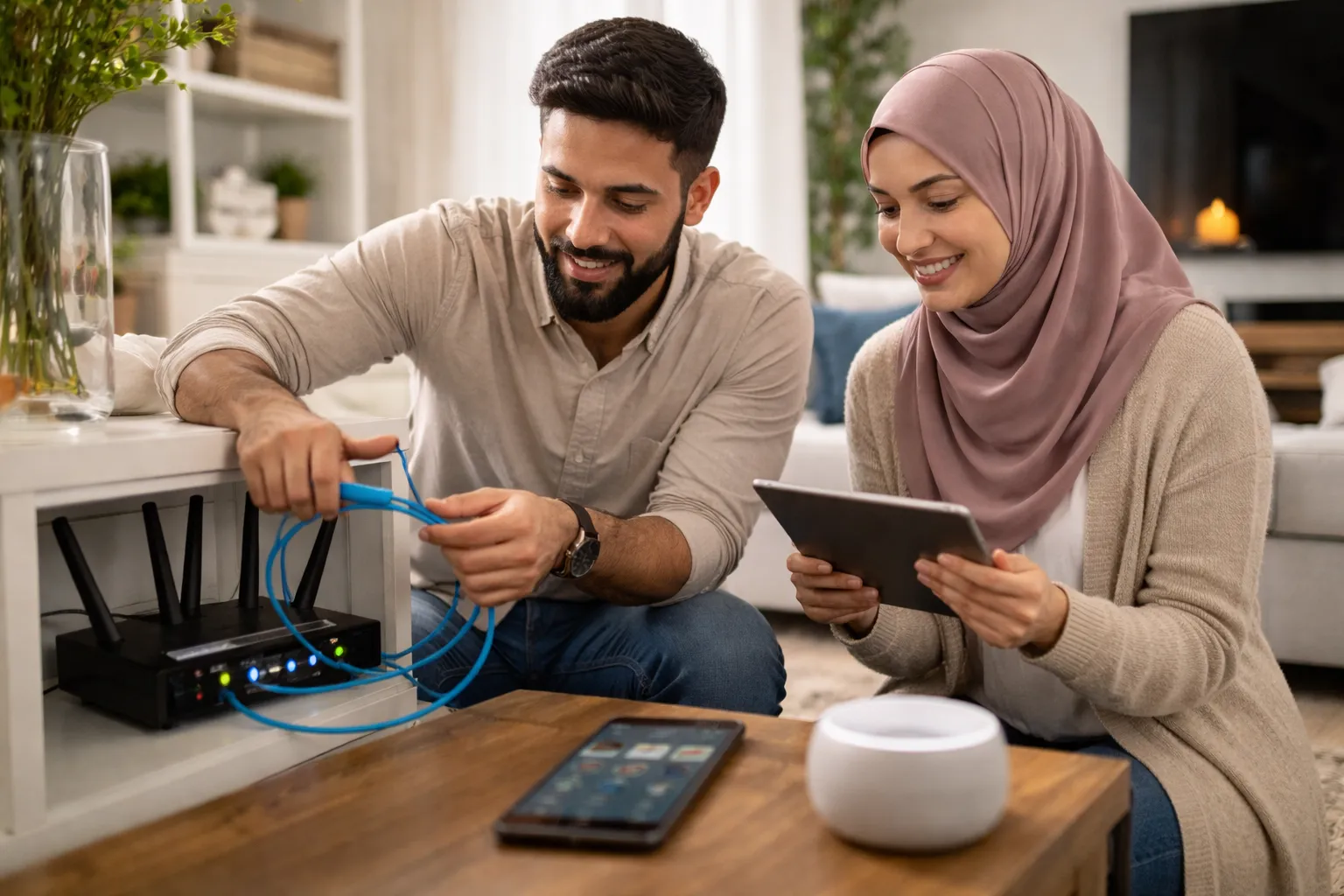
- Connect Devices: Add smart devices one at a time, following manufacturer instructions. Use Wi-Fi for most items, but consider Ethernet for stationary devices like security cameras to reduce latency.
- Set Up a Hub: If using a hub like Home Assistant, install it on a compatible device (e.g., Raspberry Pi) and configure it to recognize your smart devices. This is especially useful for complex integrations, such as linking MyQ garage openers for automated control.
- Test and Optimize: Run speed tests and check device responsiveness. Adjust settings as needed, such as assigning static IP addresses to critical devices to prevent disconnections.
By following this process, you can minimize issues and ensure a smooth setup. For more insights on integrating entertainment systems, check out our guide on home bowling alleys and cinemas.
Common Troubleshooting Issues and Solutions
Even with a careful setup, smart home networks can encounter problems. Here are some common issues and how to fix them:
- Amcrest Smart Home Network Error: This often occurs due to incorrect Wi-Fi settings or firmware bugs. First, restart your Amcrest device and router. If the error persists, update the device’s firmware through the Amcrest app. Ensure your network uses a 2.4 GHz band, as many smart devices don’t support 5 GHz. For persistent issues, reset the device to factory settings and reconfigure it.
- Home Assistant on Construction Site: Using Home Assistant in temporary setups, like construction sites, can be challenging due to unstable internet. Use a mobile hotspot or a dedicated router with a SIM card for connectivity. Limit the number of devices to reduce network load, and consider offline modes for critical automations.
- MyQ Home Assistant Integration Problems: If MyQ devices fail to connect with Home Assistant, check API keys and network permissions. Ensure your MyQ account is linked correctly in Home Assistant’s configuration. Sometimes, firewall settings block the connection, so adjust them to allow traffic between devices.
Regular maintenance, such as updating software and monitoring network health, can prevent many of these issues. For additional tips on home security, explore our article on home security fundamentals.
Integration Tips for Specific Devices
Integrating devices like OpenGarage, Amcrest, and MyQ requires attention to detail. Here’s a comparison of key aspects:
| Device | Integration Method | Common Issues | Solutions |
|---|---|---|---|
| OpenGarage | Home Assistant via API or custom component | Connection drops, sensor errors | Use stable Wi-Fi, update firmware, check sensor alignment |
| Amcrest Cameras | RTSP streams or manufacturer app | Network errors, video lag | Assign static IP, reduce bandwidth usage, use Ethernet |
| MyQ Garage Openers | Home Assistant via MyQ API | API timeouts, authentication failures | Renew API keys, ensure internet stability, disable VPNs |
For OpenGarage, ensure it’s connected to the same network as Home Assistant and that ports are open if using remote access. Amcrest devices benefit from dedicated network segments to reduce interference. MyQ integration often requires periodic reauthentication, so set reminders to check connections. By addressing these specifics, you can enhance reliability. Learn more about device setups in our smart home integration guide.
Best Practices for Network Security
Securing your smart home network is vital to protect against cyber threats. Implement these best practices:
- Use Strong Passwords: Avoid default passwords on routers and devices. Create unique, complex passwords for each device and change them regularly.
- Enable Network Encryption: Use WPA3 encryption on your Wi-Fi network to safeguard data transmissions. If unavailable, WPA2 is a good alternative.
- Segment Your Network: Create separate networks for smart devices and personal computers. This limits access if one device is compromised.
- Update Firmware Regularly: Manufacturers release updates to patch security vulnerabilities. Set up automatic updates where possible.
- Monitor Device Activity: Use network monitoring tools to detect unusual behavior, such as unauthorized access attempts.
By following these practices, you reduce the risk of breaches. For related advice on emergency preparedness, see our home emergency safety checklists.
FAQs: People Also Ask
What is OpenGarage Home Assistant integration?
OpenGarage Home Assistant integration allows you to control your garage door remotely through the Home Assistant platform. It involves connecting the OpenGarage device to your network and configuring it in Home Assistant using APIs or add-ons, enabling automation and monitoring from your smartphone or voice assistants.
How do I fix Amcrest smart home network errors?
To fix Amcrest network errors, restart your device and router, update the firmware, and ensure you’re using a 2.4 GHz Wi-Fi band. If problems continue, reset the device and reconfigure it, checking for interference from other electronics.
Can I use Home Assistant on a construction site?
Yes, you can use Home Assistant on a construction site by relying on mobile hotspots or portable routers with SIM cards. Limit connected devices and use offline capabilities to maintain functionality despite unstable internet connections.
Why is MyQ not working with Home Assistant?
MyQ may not work with Home Assistant due to expired API keys, network firewall blocks, or incorrect configuration. Verify your MyQ account linkage in Home Assistant, renew API keys, and adjust firewall settings to allow communication.
What are the benefits of a mesh network for smart homes?
Mesh networks provide extended coverage and consistent signals across large homes, reducing dead zones. They improve reliability for smart devices by ensuring stable connections, which is crucial for seamless automation and real-time monitoring.
How often should I update my smart home devices?
Update your smart home devices as soon as manufacturers release firmware updates, typically every few months. Regular updates patch security vulnerabilities and add new features, enhancing performance and safety.
Can I integrate smart home devices without a hub?
Yes, many smart devices can be controlled directly via apps or voice assistants without a hub. However, using a hub like Home Assistant offers advanced automation, cross-brand compatibility, and centralized management for a more integrated experience.