Honeywell Home thermostats are renowned for their reliability and advanced features, but even the best devices can encounter issues like a blank screen, unresponsive controls, or being locked out. Whether you’re a new homeowner trying to figure out how to turn on your Honeywell Home thermostat or a seasoned user troubleshooting a Pro Series model that won’t respond, this guide provides clear, actionable solutions. From unlocking your device to performing a reset, we’ll walk you through every step to restore comfort and control in your home.
To turn on a Honeywell Home thermostat, first ensure it has power by checking the circuit breaker and batteries. If the screen is blank, replace batteries or reset the device. For Pro Series models, unlock by pressing and holding the ‘Menu’ or ‘System’ button for 5 seconds, then enter the default code (often 0000) or your custom PIN. If issues persist, a factory reset may be necessary by removing batteries or accessing the reset option in settings.
Understanding Your Honeywell Home Thermostat
Honeywell offers a range of thermostats, from basic models to advanced Pro Series devices with Wi-Fi capabilities and programmable settings. Common issues include blank screens, unresponsive buttons, or being locked out due to security features. Before diving into troubleshooting, identify your model by checking the label on the device or consulting the manual. This will help tailor solutions to your specific thermostat, whether it’s a simple dial or a touchscreen Pro Series unit. For broader HVAC insights, see our guide on understanding home HVAC components.
How to Turn On Honeywell Home Thermostat
If your thermostat isn’t turning on, follow these steps to restore power and functionality:
- Check the power source: Ensure the thermostat is receiving power from your HVAC system’s circuit breaker. Flip the breaker off and on if needed.
- Inspect batteries: Many Honeywell models use AA or AAA batteries. Replace them if they’re dead or low, as this can cause a blank screen.
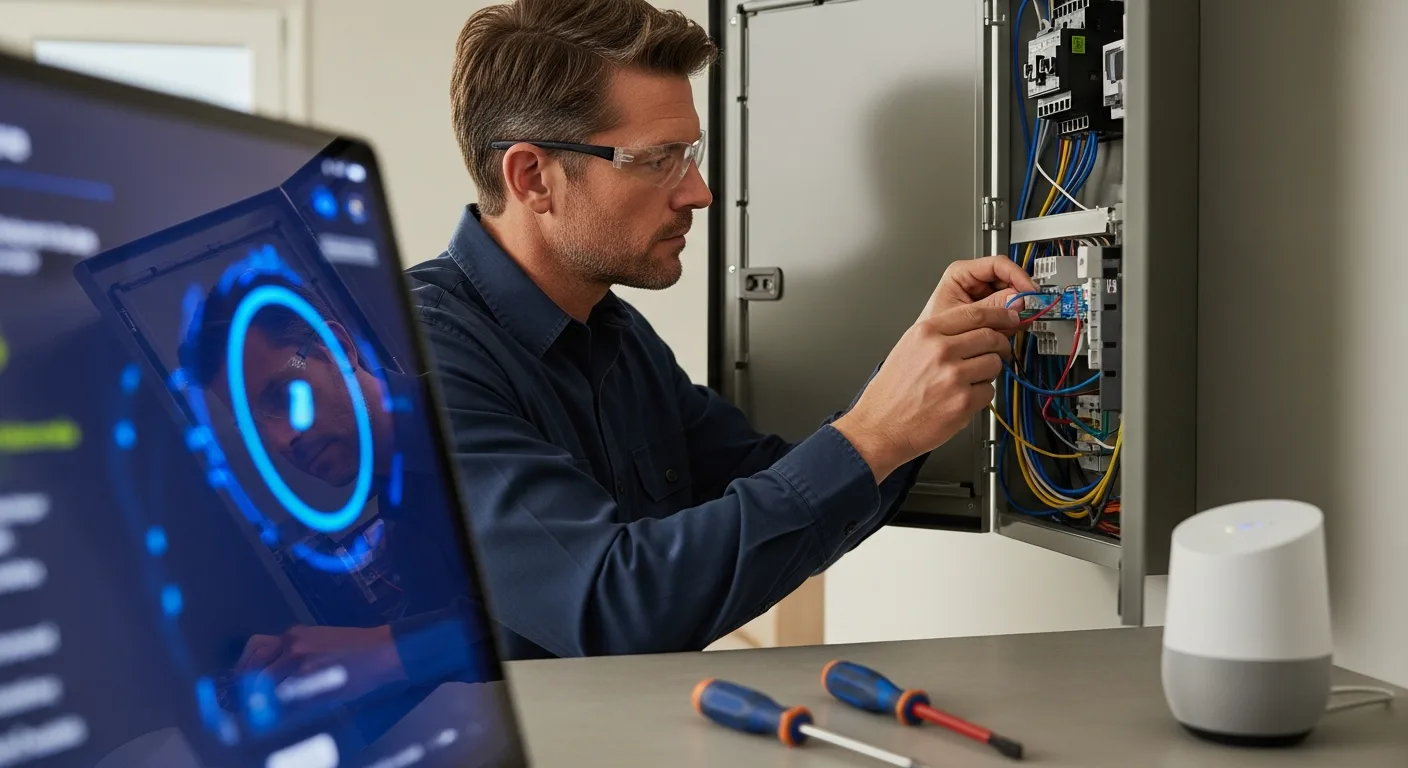
- Verify wiring: Loose or disconnected wires can disrupt power. Turn off the HVAC system and gently check connections at the thermostat base.
- Reset the device: For digital models, remove batteries for 30 seconds or use the reset button to reboot the system.
If these steps don’t work, your thermostat might have a deeper electrical issue, similar to problems that can arise with other home systems like home AC troubleshooting for leaks and fans.
How to Unlock Honeywell Home Pro Series Thermostat
Pro Series thermostats often include a lock feature to prevent unauthorized changes. If you’re locked out, here’s how to regain access:
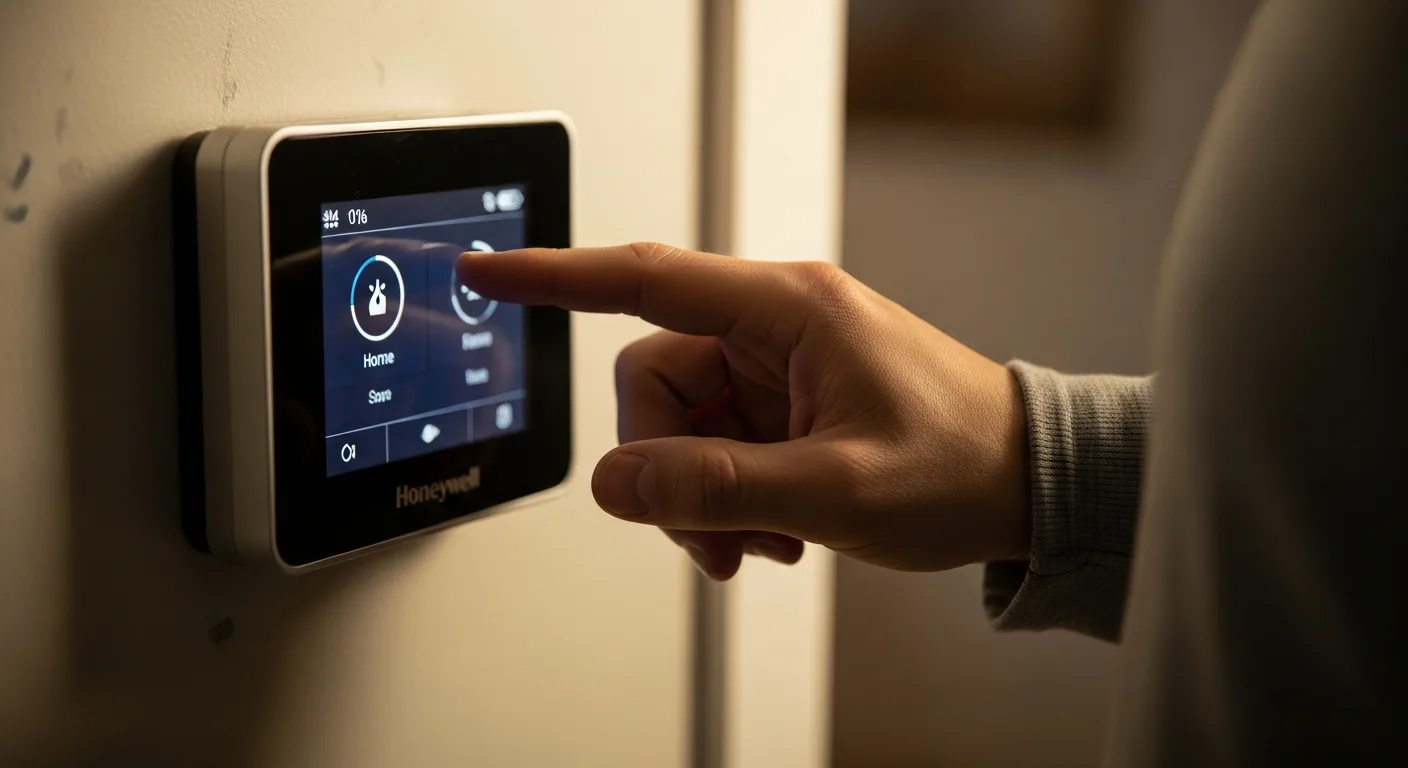
- Default unlock method: Press and hold the ‘Menu’ or ‘System’ button for 5 seconds. Enter the default PIN, which is typically 0000 or 1234, unless you’ve changed it.
- Custom PIN recovery: If you’ve set a custom PIN and forgotten it, you may need to perform a factory reset to restore default settings.
- Using the app: For Wi-Fi-enabled models, unlock via the Honeywell Home app by navigating to settings and selecting ‘Unlock Thermostat.’
Unlocking ensures you can adjust temperatures and schedules, much like maintaining control over other smart home features discussed in our home arcade and game room design guide.
Honeywell Thermostat Troubleshooting Blank Screen
A blank screen is a common issue that can stem from various causes. Use this checklist to diagnose and fix the problem:
- Battery replacement: Dead batteries are the most frequent culprit. Swap them out with fresh ones.
- Power cycle: Turn off the HVAC system at the breaker, wait 30 seconds, and turn it back on to reset the thermostat.
- Check for tripped breakers: Ensure the HVAC circuit breaker hasn’t tripped, cutting power to the thermostat.
- Inspect for wiring issues: Loose or corroded wires can disrupt display functionality. Secure connections if needed.
If the screen remains blank after these steps, the thermostat may need professional repair or replacement. For related home maintenance tips, explore our master home maintenance checklists.
Reset Honeywell Home Thermostat
Resetting your thermostat can resolve persistent issues like freezing, incorrect readings, or lockouts. Here’s how to do it safely:
- Soft reset: Remove batteries for 30 seconds or press the reset button (if available) to reboot without losing settings.
- Factory reset: Access the settings menu, select ‘Reset,’ and choose ‘Factory Reset’ to restore default configurations. Note: This erases all custom schedules and Wi-Fi connections.
- Power reset: Turn off the HVAC system at the breaker, wait a minute, and restore power to force a full restart.
After resetting, reprogram your thermostat to match your preferences. This process is akin to resetting other home devices, such as those covered in our home camera without WiFi guide.
Comparing Honeywell Thermostat Models
| Model Type | Common Issues | Reset Method | Unlock Code |
|---|---|---|---|
| Basic Non-Programmable | Blank screen, no power | Replace batteries | N/A |
| Pro Series Touchscreen | Locked out, frozen display | Factory reset via menu | 0000 (default) |
| Wi-Fi Enabled | Connectivity loss, unresponsive | App-based reset | Custom PIN |
Preventive Maintenance Tips
To avoid frequent troubleshooting, maintain your thermostat with these best practices:
- Regularly replace batteries every 6-12 months to prevent power failures.
- Keep the thermostat clean by wiping the screen with a soft, dry cloth to avoid dust buildup.
- Update firmware for Wi-Fi models via the Honeywell Home app to ensure optimal performance.
- Schedule annual HVAC inspections to catch wiring or system issues early.
Proper maintenance extends the life of your thermostat and other home systems, similar to care for mobile home plumbing and insulation.
Frequently Asked Questions
Why is my Honeywell Home thermostat not turning on?
This is often due to dead batteries, a tripped circuit breaker, or loose wiring. Check these components first, and if the issue persists, consider a reset or professional inspection.
How do I unlock my Honeywell Pro Series thermostat without the code?
If you’ve forgotten the PIN, perform a factory reset by accessing the settings menu or removing batteries. This will restore default settings, including the unlock code (usually 0000).
What should I do if my thermostat screen is blank but has power?
Try a power cycle by turning off the HVAC breaker for 30 seconds. If that doesn’t work, replace the batteries or check for display damage that may require replacement.
How often should I reset my Honeywell thermostat?
Only reset when experiencing issues like freezing or incorrect readings. Frequent resets aren’t necessary and can disrupt your programmed settings.
Can I reset my Honeywell thermostat remotely?
For Wi-Fi models, use the Honeywell Home app to perform a soft reset. For non-Wi-Fi models, you’ll need to physically access the device.
What’s the default unlock code for Honeywell thermostats?
Most models use 0000 or 1234 as the default PIN. Refer to your manual for model-specific codes.
How do I prevent my thermostat from locking again?
Disable the lock feature in settings if it’s not needed, or set a memorable PIN and note it down in a secure place.
Is it safe to reset my thermostat myself?
Yes, as long as you follow the manufacturer’s instructions. Avoid tampering with electrical wiring without proper knowledge to prevent hazards.
Frequently Asked Questions
Why is my Honeywell Home thermostat not turning on?
This is often due to dead batteries, a tripped circuit breaker, or loose wiring. Check these components first, and if the issue persists, consider a reset or professional inspection.
How do I unlock my Honeywell Pro Series thermostat without the code?
If you’ve forgotten the PIN, perform a factory reset by accessing the settings menu or removing batteries. This will restore default settings, including the unlock code (usually 0000).
What should I do if my thermostat screen is blank but has power?
Try a power cycle by turning off the HVAC breaker for 30 seconds. If that doesn’t work, replace the batteries or check for display damage that may require replacement.
How often should I reset my Honeywell thermostat?
Only reset when experiencing issues like freezing or incorrect readings. Frequent resets aren’t necessary and can disrupt your programmed settings.
Can I reset my Honeywell thermostat remotely?
For Wi-Fi models, use the Honeywell Home app to perform a soft reset. For non-Wi-Fi models, you’ll need to physically access the device.
What's the default unlock code for Honeywell thermostats?
Most models use 0000 or 1234 as the default PIN. Refer to your manual for model-specific codes.
How do I prevent my thermostat from locking again?
Disable the lock feature in settings if it’s not needed, or set a memorable PIN and note it down in a secure place.
Is it safe to reset my thermostat myself?
Yes, as long as you follow the manufacturer’s instructions. Avoid tampering with electrical wiring without proper knowledge to prevent hazards.